
ESA families
How to pay with your ESA
Paying Bright Starr’s Academy through ClassWallet

Pay in ClassWallet
Families with an Arizona ESA pay us through ClassWallet’s Direct Pay.

A few minutes
Seven short steps, start to finish.

Have your invoice ready
You’ll upload the invoice we send you.
Please note: the amounts in the pictures are an example.
Seven steps in ClassWallet
-
Step 1 Open Direct Pay
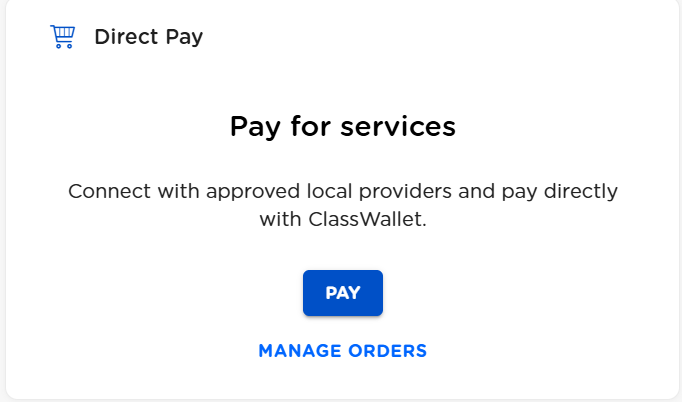
In your ClassWallet, find Direct Pay · Pay for services and click PAY.
Click or tap the picture to see it bigger -
Step 2 Find Starr McTighe
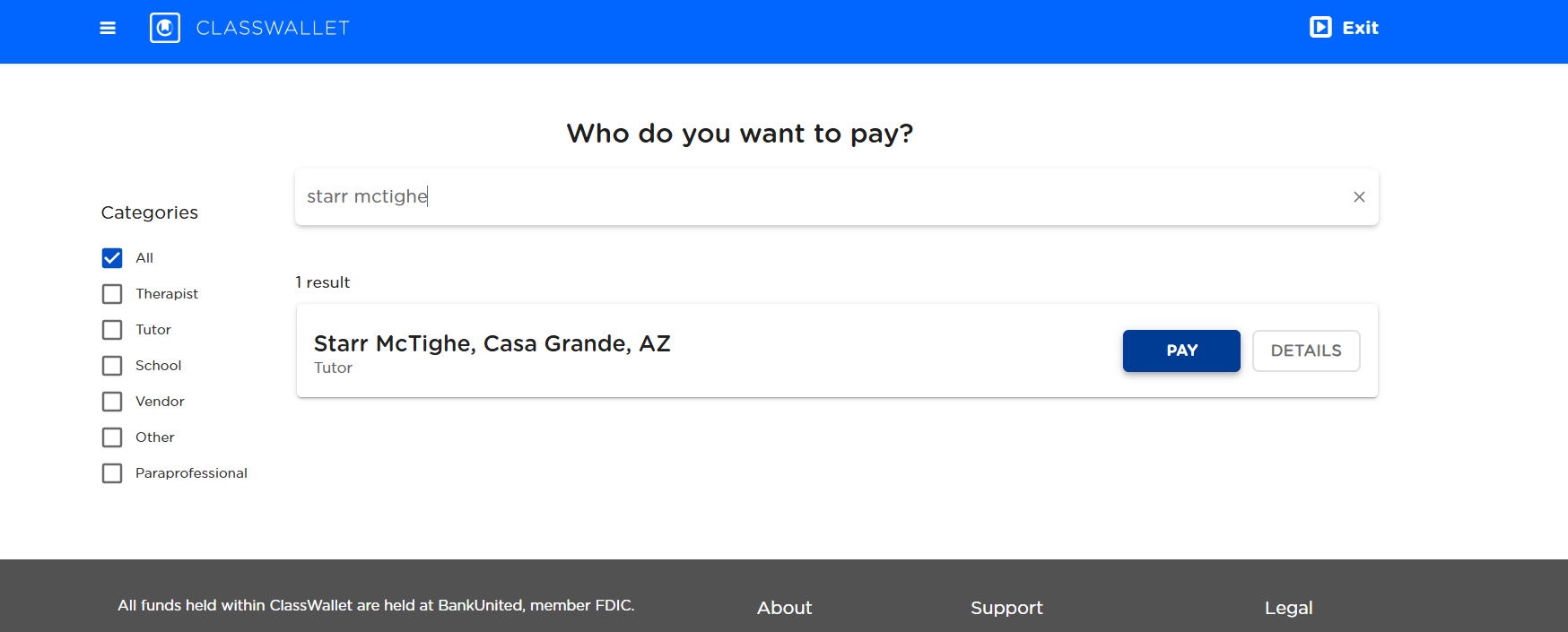
In the search bar, type McTighe. Choose Starr McTighe, Casa Grande, AZ (listed as Tutor) and click PAY.
Click or tap the picture to see it bigger -
Step 3 Upload your invoice
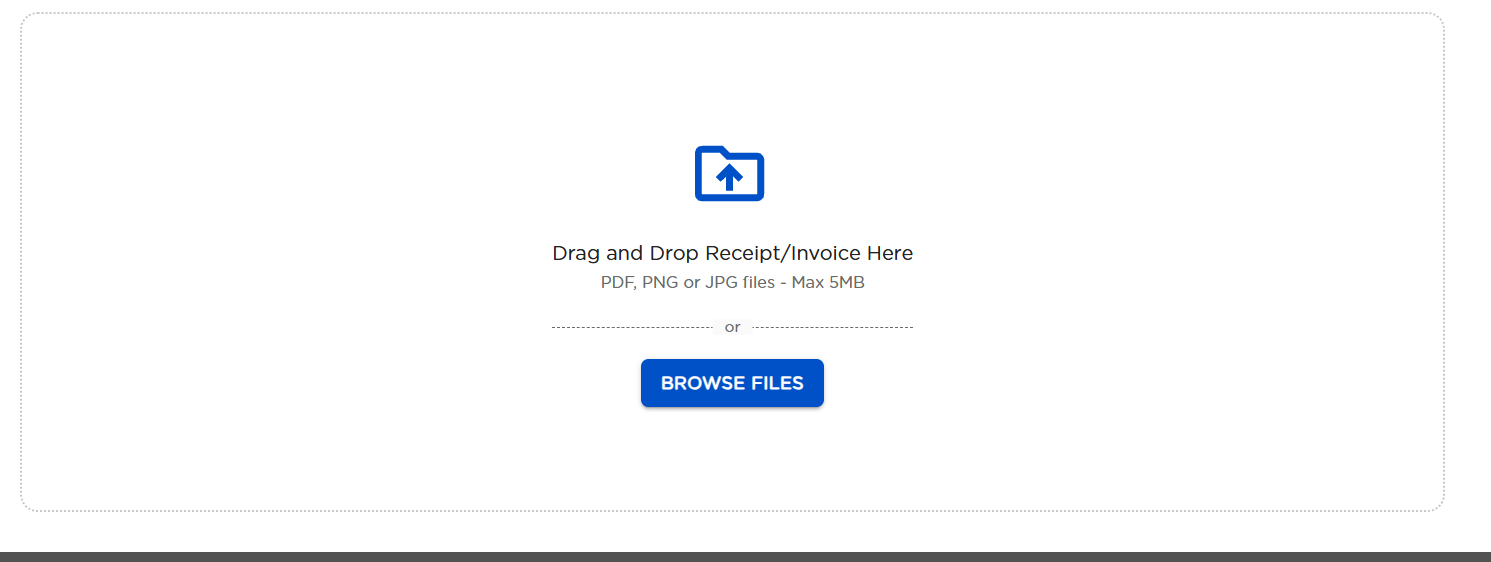
Upload the invoice we gave you (PDF, PNG or JPG, up to 5 MB). Drag it into the box, or click Browse Files.
Click or tap the picture to see it bigger -
Step 4 Check the details
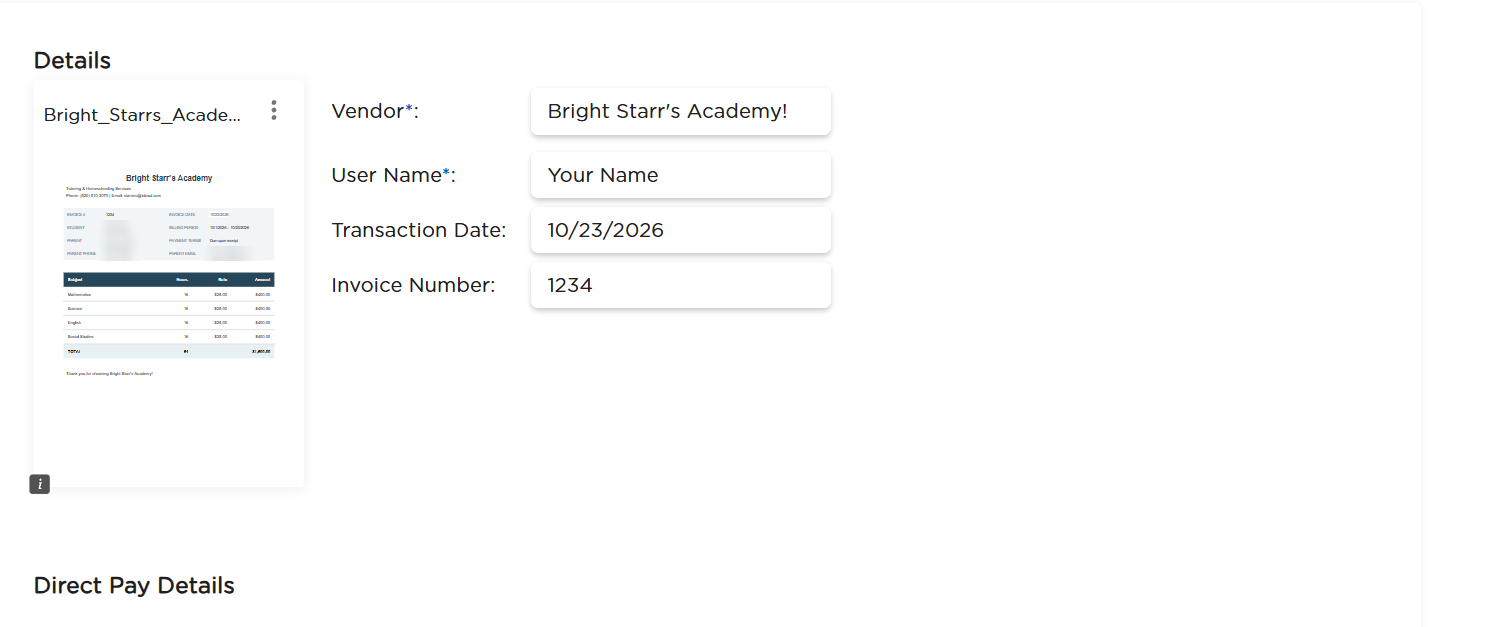
ClassWallet fills in the details from the invoice. Double check they match your invoice: vendor, date and invoice number.
In User Name, type your name.
Click or tap the picture to see it bigger -
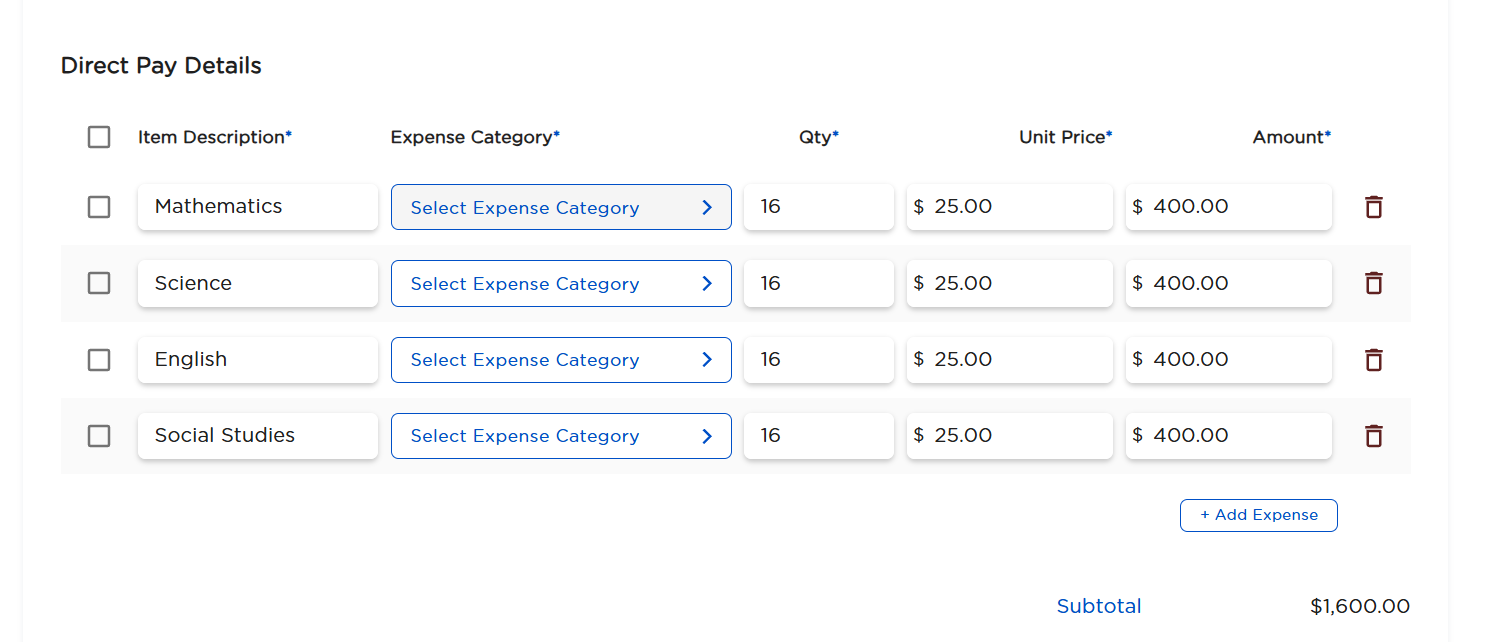
Step 5 Choose the expense category
For each line, click Select Expense Category and choose Tutoring and Teaching Services – Accredited Individual.
Check that the hours, rate and amount match the invoice.
Click or tap the picture to see it bigger -
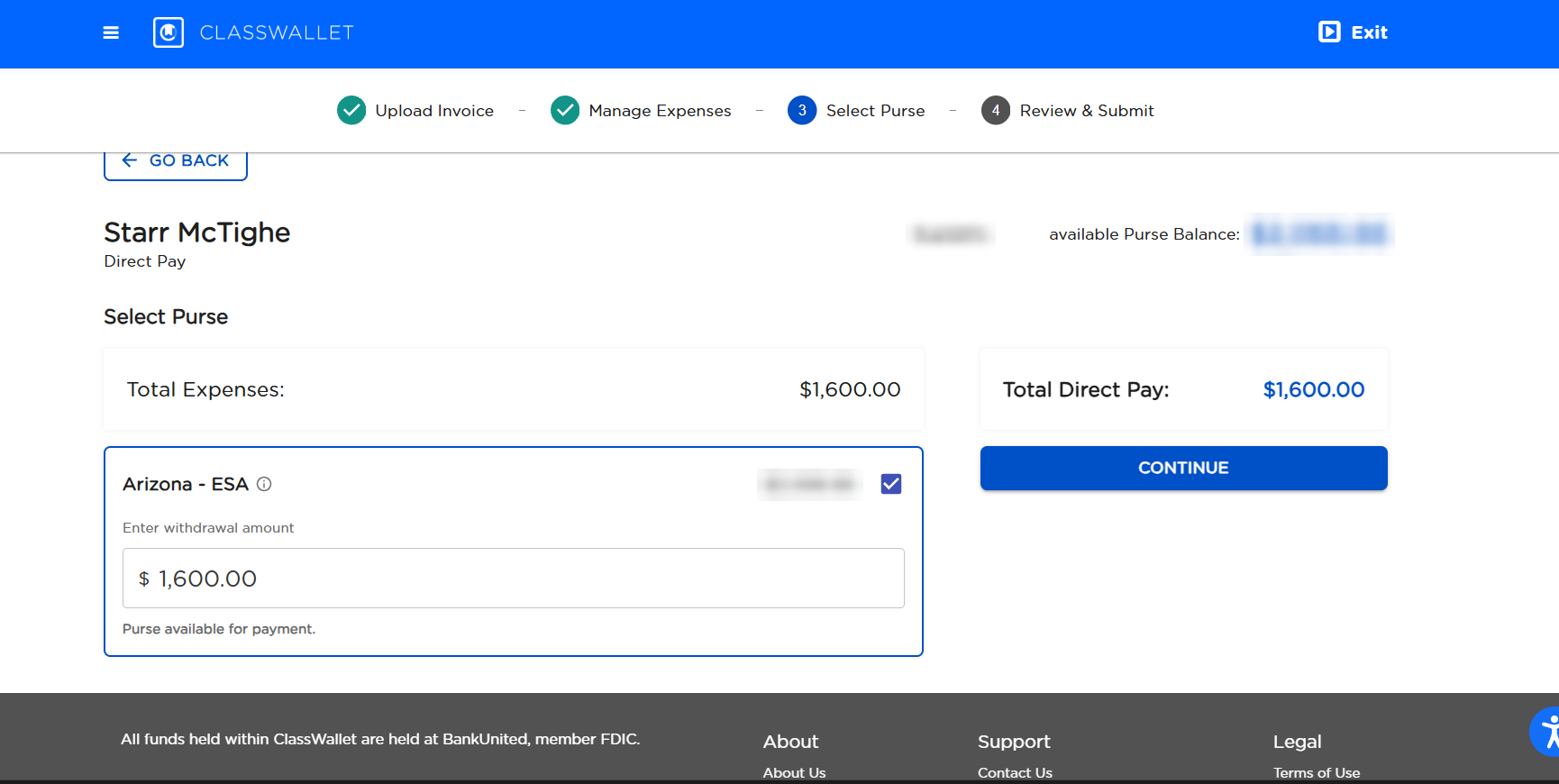
Step 6 Choose your ESA purse
Scroll to the bottom and click Continue. On Select Purse, tick Arizona – ESA, make sure the amount matches your invoice total, and click Continue.
Click or tap the picture to see it bigger -
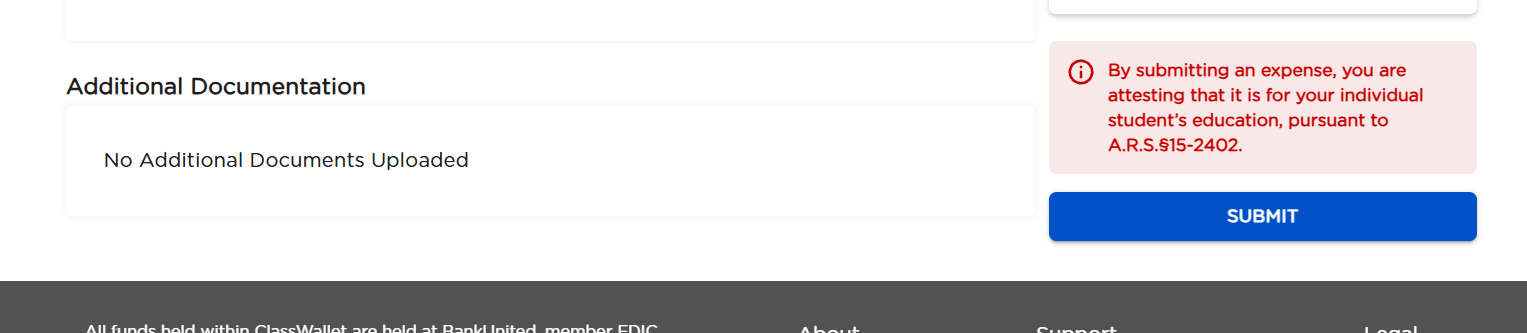
Step 7 Review and submit
Look everything over once more, then scroll down and click Submit.
ClassWallet notes that submitting confirms the expense is for your student’s education, per A.R.S. §15-2402.
Click or tap the picture to see it bigger

Questions? We’re happy to help.
Email Starr at starr@brightstarrsacademy.com, or send us a note on our Contact page.
brightstarrsacademy.com/contact